
Guides
Windows 10 Activation Errors and How to Fix Them
Sep
Windows 10 Activation Errors and How to Fix Them
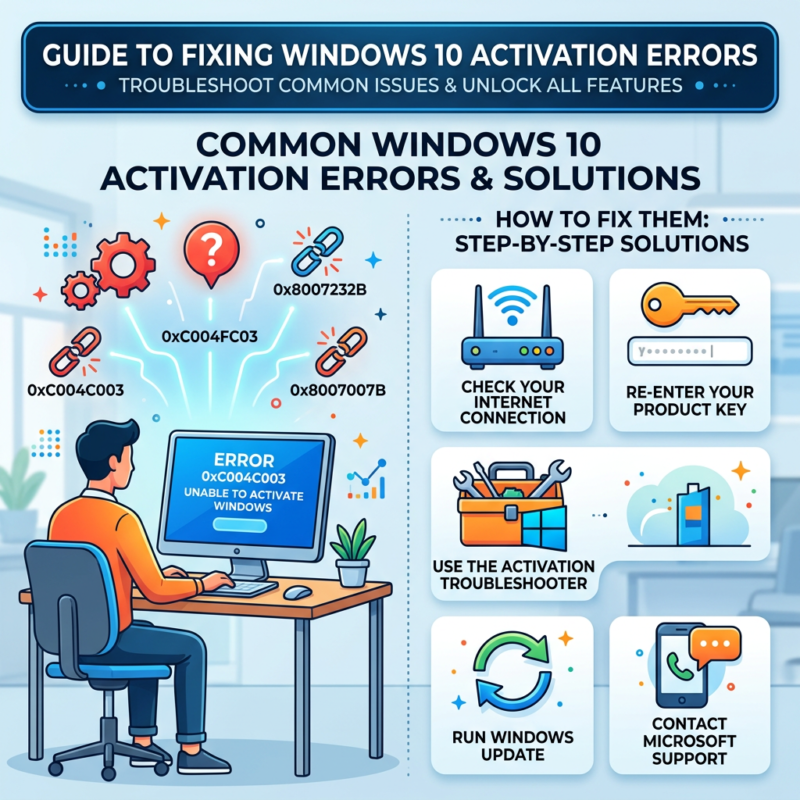
Windows 10 activation errors can prevent your computer from being properly activated. These errors may appear for several reasons, including an invalid product key, a hardware change, a licensing problem, or an issue connecting to Microsoft’s activation service.
If you’re seeing a Windows activation error, the error code can help identify the cause of the problem. In this guide, we’ll explain some of the most common Windows 10 activation errors, what they mean, and the steps you can take to troubleshoot and fix them. For the full walkthrough of redeeming and activating a key, see our guide on how to activate Microsoft Office.
How to Check Your Windows 10 Activation Status
Before troubleshooting an activation problem, it’s useful to check the current activation status of Windows.
To check it:
- Open Settings.
- Select Update & Security.
- Click Activation.
- Check the activation status displayed on the page.
If Windows isn’t activated, you may see an error code explaining why activation failed. Microsoft also provides an Activation Troubleshooter that can help identify certain activation and licensing problems.
Common Windows 10 Activation Errors and Fixes
Error 0xC004F211 – Windows Activation After a Hardware Change
Error 0xC004F211 can occur when Windows detects a significant hardware change, such as replacing the motherboard. When hardware changes, Windows may no longer recognize the existing digital license as belonging to the same device.
How to Fix Error 0xC004F211
- Open Settings.
- Go to Update & Security > Activation.
- Select Troubleshoot.
- Follow the instructions provided by the Activation Troubleshooter.
- If you have a valid product key, select Change product key and enter it.
If the problem continues, you may need to contact Microsoft Support or verify the license associated with your device.
Error 0xC004C008 – Product Key Already Used
Error 0xC004C008 can occur when a Windows product key has already been used on another device or cannot be used for the current activation.
How to Fix Error 0xC004C008
- Make sure you entered the product key correctly.
- Check that the key matches your Windows edition.
- If you recently transferred Windows to another computer, check the license terms that apply to your key.
- If you purchased the key from a reseller, contact the seller for assistance.
- If necessary, use a valid Windows license that is appropriate for your device.
Not sure whether your key is OEM, retail or volume? See our guide on OEM vs Retail vs Volume license keys to understand what you bought and what rules apply to it.
Error 0x803F7001 – No Valid Windows License Found
The 0x803F7001 activation error means that Windows could not find a valid license for your device.
How to Fix Error 0x803F7001
First, make sure your computer is connected to the internet.
- Open Settings.
- Go to Update & Security > Activation.
- Select Troubleshoot if the option is available.
- If you have a valid product key, select Change product key.
- Enter the correct 25-character Windows product key.
Also make sure that your installed Windows edition matches your license. For example, a Windows Pro license should be used with the appropriate Windows Pro edition.
Error 0x8007232B – DNS Name Does Not Exist
Error 0x8007232B is commonly associated with Windows volume activation and KMS (Key Management Service). It can occur when a device configured to use KMS cannot find the required KMS server.
How to Fix Error 0x8007232B
If this is a company or organization-managed computer:
- Connect the computer to your organization’s network or VPN.
- Make sure the device can communicate with the organization’s KMS server.
- Contact your system administrator if the problem continues.
If this is a personal computer, check whether the correct Windows edition and license were installed.
Error 0x80072F8F – Security Error During Activation
Error 0x80072F8F can occur when Windows encounters a security or connection problem while communicating with activation services. Incorrect date and time settings can also contribute to this error.
How to Fix Error 0x80072F8F
- Open Settings.
- Go to Time & Language.
- Check your date and time.
- Make sure your time zone is correct.
- Enable automatic time synchronization.
- Make sure you’re connected to the internet.
- Restart your computer.
- Try to activate Windows again.
Error 0xC004F050 – Invalid Windows Product Key
Error 0xC004F050 appears when the product key entered cannot be used to activate Windows.
How to Fix Error 0xC004F050
- Verify that all 25 characters of the product key were entered correctly.
- Make sure the key matches your Windows edition.
- If you upgraded or reinstalled Windows, try activation again.
- If you have another valid Windows product key, try entering it.
- Make sure you are using a legitimate license.
Error 0xC004C003 – Windows Activation Error
Error 0xC004C003 indicates that the product key entered cannot be used for activation. This may occur when the activation service cannot validate the key for the current installation.
How to Fix Error 0xC004C003
- Confirm that you entered the correct product key.
- Check that your Windows edition matches the license.
- Run the Windows Activation Troubleshooter.
- If you purchased the license recently, contact the seller if the problem continues.
- Contact Microsoft Support if you believe the key should be valid.
General Ways to Fix Windows 10 Activation Errors
1. Check Your Internet Connection
Windows activation requires communication with Microsoft’s activation services. Make sure your computer has a stable internet connection.
2. Check Your Windows Edition
Your product key must correspond to the Windows edition installed on your computer. Make sure the edition installed on your PC matches the license you are trying to use.
3. Run the Activation Troubleshooter
Go to Settings > Update & Security > Activation > Troubleshoot.
The troubleshooter can identify certain activation and licensing issues.
4. Verify Your Date and Time
Incorrect system date, time, or time-zone settings can cause problems when Windows communicates with activation services.
5. Enter Your Product Key Again
If you have a valid product key, you can enter it through Settings > Update & Security > Activation > Change product key.
6. Restart Your Computer
Some activation problems can be temporary. After making changes to your network, Windows settings, or license information, restart your computer and try activation again.
Why Does Windows Say “Windows Is Not Activated”?
There are several possible reasons Windows may not be activated.
- No valid digital license is associated with the device.
- An incorrect product key was entered.
- The product key doesn’t match the installed Windows edition.
- Significant hardware changes were made.
- The computer is configured for volume activation but cannot contact a KMS server.
- There is a temporary activation or connectivity problem.
Checking the exact activation error code is usually the best starting point.
Is Windows 10 Still Supported?
Windows 10 reached the end of its standard support on October 14, 2025. Windows 10 PCs can still operate after this date, but standard free software updates, security fixes, and technical support have ended under Microsoft’s normal support lifecycle.
Eligible Windows 10 devices may have access to Microsoft’s Extended Security Updates (ESU) program. Users should check Microsoft’s current requirements to determine whether their device is eligible.
It’s important to understand that activation and support are separate issues. Successfully activating Windows 10 does not restore its standard support lifecycle. If you’re weighing whether to stay on Windows 10 or move to Windows 11, see our full Windows 11 vs Windows 10 comparison, including whether your PC can actually run Windows 11.
Conclusion
Windows 10 activation errors can have different causes, from incorrect product keys and licensing problems to hardware changes and KMS configuration issues.
The first step is to identify the exact error code shown in your Activation settings. Once you know the code, you can use the appropriate troubleshooting steps to determine whether the problem is related to your product key, Windows edition, hardware, network connection, or licensing configuration.
For persistent activation problems, use Microsoft’s official activation troubleshooting resources or contact the appropriate license provider for further assistance. If you’re buying a new license, see our guide on OEM vs Retail vs Volume license keys to choose the right type.
Start by checking your internet connection, confirming that your Windows edition matches your license, and running the Windows Activation Troubleshooter. If you have a valid product key, you can also enter it through the Activation settings.
A product key may fail if it is incorrect, invalid for the installed Windows edition, already associated with another activation, or otherwise not eligible for the activation attempt.
Error 0xC004F050 generally means that the product key entered cannot be used to activate Windows.
Error 0x803F7001 means that Windows could not find a valid license to activate the device.
Windows 10 can still be activated with a valid license, but activation does not change the fact that standard Windows 10 support ended on October 14, 2025.
Check the exact error code, run the Windows Activation Troubleshooter, verify that the product key matches your Windows edition, and contact Microsoft Support or your license provider if the problem persists.
